- Home
- Lock Screen vocabulary widget
Guide
A vocabulary widget on your iPhone Lock Screen, answered with one tap.
The Lock Screen is the first thing you see every time you pick up the phone. Put a word there and you never have to remember to open an app. This guide shows how to add Lexipeek's free widgets on iOS 17 and later, what the answer button does, and which widget goes where.
Lexipeek is for Turkish speakers: the interface and the word meanings are in Turkish. The widget shows an English word with its Turkish meaning. If you do not read Turkish, the app will not be useful to you; the setup steps below apply to any Lock Screen widget.
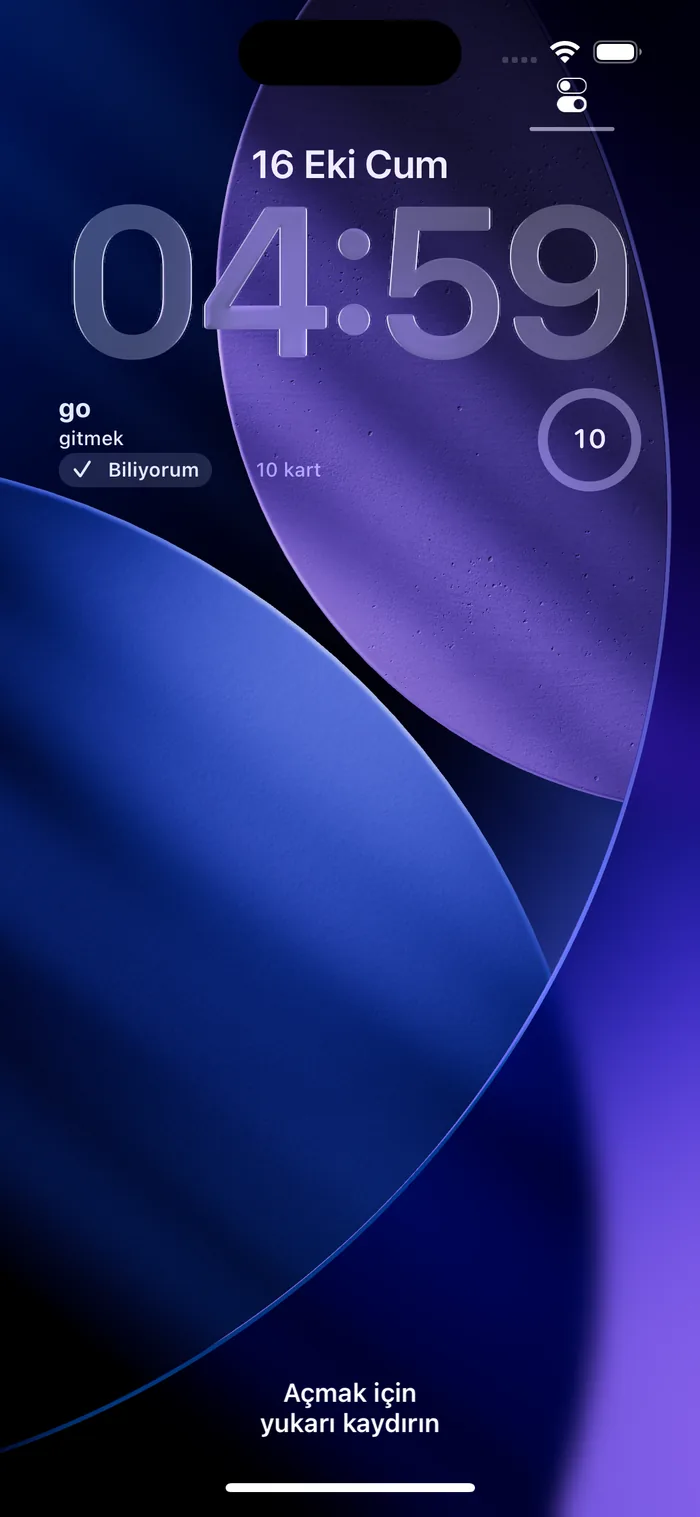
The Next word widget, up close
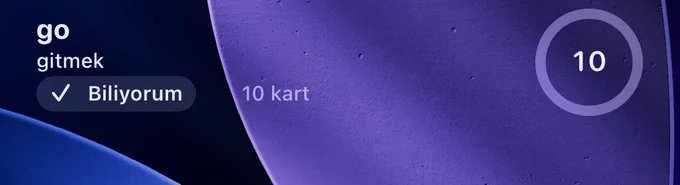
Lock Screen · iOS 17 and later
Add the widget to the Lock Screen
Five taps. The menu names below are the English iOS labels.
-
Touch and hold
Unlock the phone, then touch and hold the Lock Screen until a button appears at the bottom.
Customize -
Pick the Lock Screen
If asked, choose the preview on the left, not the Home Screen.
Lock Screen -
Tap below the time
The empty strip under the clock is the widget area; tapping it opens the widget list.
Add Widgets -

Find Lexipeek
Tap or drag the rectangular Sıradaki kelime (Next word) and the circular Kalan kartlar (Cards left); they fit side by side.
Lexipeek → Next word -
Finish
Tap the button in the top right, then tap an empty area to leave editing. The word is now on your Lock Screen.
Done
Lexipeek missing from the list? Open the app once, close it and try again. iOS sometimes lists a newly installed app's widgets only after the first launch.
Home Screen
Add a Home Screen widget
-
Touch and hold an empty spot
Wait until the apps start to jiggle.
-
Edit, then add
Tap Edit in the top-left corner, then Add Widget. On iOS 17, tap the + button instead.
Edit → Add Widget -
Search for Lexipeek
Choose the small or medium word widget, or the Quiz widget (Soru).
Lexipeek -
Add
Tap the button at the bottom, drag the widget where you want it and tap Done.
Add Widget

Buttons
What the buttons do
An answer given in a widget counts exactly like an answer given in the app. The app does not open; the card is answered in place.
- Biliyorum (I know it): the word moves up one box and is scheduled for the next interval: 1, 3, 7, 14 or 30 days later. The next word appears in the widget.
- Tekrar (again), Home Screen widgets only: the word drops back to box one and comes up again the same day.
- Quiz widget: asks the word that is due with three options. The right option counts as “I know it”, a wrong one as “again”; Emin değilim (not sure) pushes the word to tomorrow.
- Tapping the Lock Screen widget anywhere but the button opens the card in the app; the Cards left circle opens the Today screen.
- Widgets refresh after every answer and at midnight. Bugünlük bitti means today's cards are done; the widget then shows tomorrow and your streak.
The schedule behind the buttons is explained in What is spaced repetition?
Five widgets, three themes
Which widget goes where
Home Screen widgets come in three themes chosen in Settings: Ice blue, Navy and Night. Lock Screen widgets use iOS's own Lock Screen style and follow your wallpaper.
- Lock ScreenNext word
Rectangular. The word, its first meaning, the “I know it” button and the number of cards left.
- Lock ScreenCards left
Circular. How many cards remain today; tapping it opens the Today screen.
- Home Screen · smallNext word
Word, level and first meaning; “again” and “I know it” buttons.
- Home Screen · mediumNext word
Part of speech, pronunciation and every meaning; “again” and “I know it”.
- Home Screen · mediumQuiz
Asks the word that is due with three options; you answer on the Home Screen.
- All of themFree, no ads
No ads or purchases inside widgets; unlimited use with the A1 and A2 decks.
FAQ
About the widget
How do I add a vocabulary widget to the iPhone Lock Screen?
Unlock the phone, touch and hold the Lock Screen, tap Customize, then Lock Screen. Tap the area below the time to open Add Widgets, find Lexipeek, tap or drag the Next word and Cards left widgets into place, and tap Done. Requires iOS 17 or later. If Lexipeek is missing from the list, open the app once and try again.
Is the Lexipeek Lock Screen widget free?
Yes. Every widget is free: two on the Lock Screen and three on the Home Screen. There are no ads or purchases inside the widgets. The A1 and A2 decks (2,674 words) and spaced repetition are free too; Plus adds the higher decks and your own words.
Is Lexipeek in English?
No. Lexipeek teaches English vocabulary to Turkish speakers: the interface, the meanings and the example-sentence translations are in Turkish. The widget shows the English word with its Turkish meaning. If you do not read Turkish, this app is not for you.
What does the button on the Lock Screen widget do?
The Biliyorum button (“I know it”) answers the card without opening the app: the word moves up one box, is scheduled 1, 3, 7, 14 or 30 days later, and the next word appears. Tapping elsewhere on the widget opens the card in the app, where you can also choose Tekrar (“again”) or Emin değilim (“not sure”).
Read next
Related guides
One look, one word
The English word you are about to forget comes to your iPhone's Lock Screen; you answer it there. All widgets, the A1 and A2 decks and spaced repetition are free. For Turkish speakers; the interface is in Turkish.
Coming soon to the App Store
- No ads in widgets
- No account
- Data not collected